
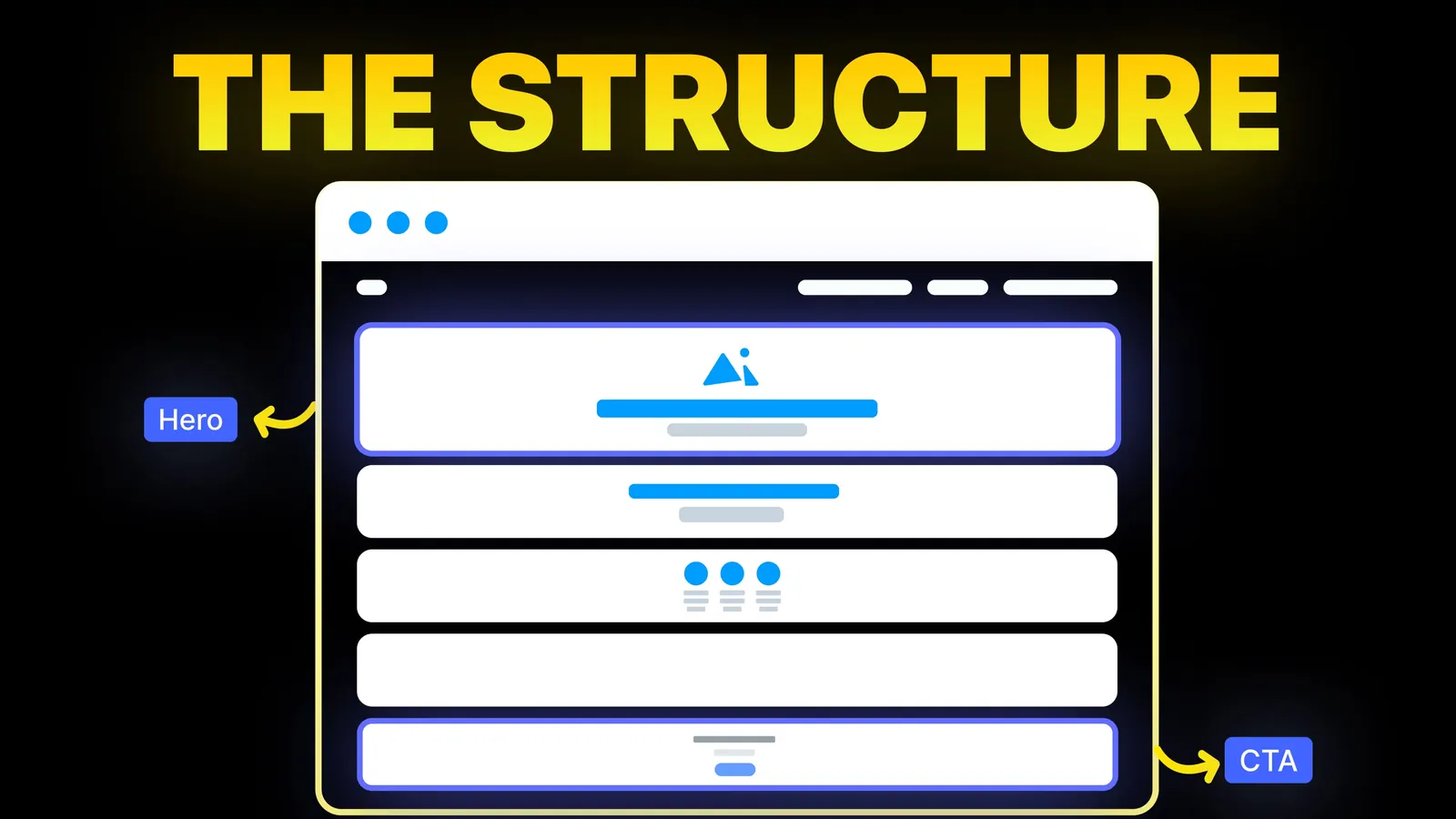
How to Turn Your Website Into a High-Converting Sales Machine
The structure behind a website that sells: the five decisions that carry conversion, the homepage section order, and how to rebuild without losing traffic.
Web Design
Most guides to this topic stop at "export and share". A demo video on a website also has to sit in the right place, play quietly, load light and still make sense without sound. This guide covers each step, with real file sizes from a live site. Checked October 2026.
A product demo video shows how a product works by showing it in use. TechSmith's guide says a demo does not need to outline every step, and recommends starting with a general overview that suits your whole audience, with deeper detail in separate tutorials.
On a website, that gives the video a narrow job: help a visitor who has read your headline understand, in under two minutes, what happens when they use the product. It sits beside your page copy and does not replace it. For how the pages around it fit together, see our guide to the five-page SaaS website structure.
The same recording rarely suits every page. This is our view, based on the pages we build, and not a published rule.
| Place | Version to use | Length | Sound |
|---|---|---|---|
| Home page, first screen | A looping clip of the single most useful action | 10 to 20 seconds | Off, with the meaning in the picture |
| Product page | The full walkthrough, behind a play button | 60 to 90 seconds | On, with captions available |
| Pricing page | A short clip answering the most common doubt, such as "how do I set it up" | 20 to 40 seconds | Either |
| Resources or blog | Tutorials, one task per video | As long as the task needs | On |
| Sales email or demo request page | The same walkthrough as the product page | 60 to 90 seconds | On |
The pattern is the same as in our landing page structure guide: the first screen gets the shortest, simplest version, and the people who want more can choose it.
You do not need a long script. Write five lines before you record:
Cut anything that is not one of those steps. Features that matter to a smaller group of visitors belong in their own videos.
On a Mac, Apple's support page says to press Shift-Command-5 to open the Screenshot tools, then record the whole screen, a window or a portion. The options let you choose a microphone and show the pointer or clicks, and recordings are saved as .mov files that you can trim. That is enough for a plain, honest clip.
What it does not do is follow your clicks with zooms or smooth the cursor, so on a busy screen the viewer may lose track of where to look. That is the main reason people reach for another tool.
One disclosure first: MotionShine, in this table, is a product of Amariq Studio, the team behind this site. We listed it next to the others using the same sources: each maker's own page, read on 18 October 2026.
| Tool | Cost as listed | What it does for demos | Keep it if |
|---|---|---|---|
| macOS built-in recorder | Free | Records screen, window or portion, with microphone, pointer and clicks | You need a plain clip fast |
| MotionShine | Free for unlimited recordings and exports at up to 720p, no watermark. A one-time licence unlocks 1080p to 4K and 60 fps, listed from a $49 founding price, then $79 | Auto zoom on clicks, smooth cursor, captions generated on your Mac, a timeline editor | You want the zoom and smooth cursor look without a subscription, and you use a Mac with macOS 13 or later |
| Screen Studio | $9 a month on yearly billing, or $29 a month, with all features in every plan | Smooth cursor, automatic zoom, export up to 4K at 60 fps | You want a focused Mac app and a monthly plan suits you |
| Camtasia | Starter $39 a year with a watermarked editor, Essentials $179.88 a year | Multitrack editing, cursor effects and path editing, captions | You need a full multitrack editor |
| Loom | Starter $0, with a 5 minute recording limit | Quick recordings you share by link | You want an async message more than a polished marketing clip |
Two notes on the table. First, MotionShine's figures come from its own page, and its own compare page describes how it checked the others, so treat the comparison as a vendor's view and check each maker's page before you buy. Second, none of these tools writes your script for you. The planning step above does more for the result than the choice of tool.
Four edits do most of the work:
Export at the size the video will be shown. A clip that appears 1,200 pixels wide on your page does not need 4K, and a smaller export is a faster page.
This is the step most demo video guides skip. The details come from MDN's reference for the HTML video element and Chrome's autoplay policy.
| Setting | What it does | Use it for |
|---|---|---|
| muted | Silences the audio track | Required for a clip that plays by itself, since Chrome says muted autoplay is always allowed |
| autoplay and loop | Starts the clip and repeats it | The looping clip on a first screen |
| playsinline | Plays the video within its own box | Clips that play within the page |
| poster | An image shown while the video downloads | Every video, and it counts for LCP |
| preload set to none | A hint not to download the video before it is needed | Clips below the first screen |
| controls | Shows play, pause and volume | The longer walkthrough |
Two cautions come from MDN. The preload setting is a hint and a browser may ignore it, and when autoplay is present, the autoplay setting wins and the browser needs to download the video. So a looping clip on the first screen will always download, which is why its file size matters.
On 18 October 2026 we read the markup and the file sizes on motionshine.com, the site for our own Mac recorder, where video is the product. Its demo clips are muted, loop, play inline and set preload to none. The hero has a desktop file of 1,922,181 bytes, about 1.92 MB, and a smaller file of 641,004 bytes, about 0.64 MB, for screens up to 767 pixels wide. Its before and after clip is 1,041,828 bytes on desktop and 328,443 bytes on phones. The page picks the right file from the media attribute on each source, with no script involved.
A phone user gets a file about a third of the size, and the preload setting asks the browser to hold back the clips that are not on the first screen.
A good LCP is 2.5 seconds or less, according to web.dev. The other Core Web Vitals targets are in our guide to the signs a website needs a redesign.
A hosted embed is quick, and some demo tools give you an embed code for your page, as HowdyGo's guide describes. A file on your own domain gives you control over the poster, the file size and when it loads. Pick the hosted embed when you need analytics or sharing and the file when the video is a page-level design element, like a hero clip.
| Check | Good looks like |
|---|---|
| First frame | Shows the product or the result, not a log-in screen |
| One job | The video makes one point and ends with one next action |
| Length | 60 to 90 seconds for the walkthrough, much shorter for a loop |
| Without sound | The looping clip makes sense on mute, with captions on the long one |
| Real product | Real screens with made-up data, no client names or private records |
| Poster | An image is set, sized to the video |
| Files | A smaller version for phones, and a size you checked |
| Next step | A button or link directly under or beside the video |
At Amariq, we plan the video with the page it will sit on, so the first screen, the clip and the call to action are designed together. We set the clips up as part of the page, keep them light, and build the page so your team can swap a video without a developer. Our Webflow development page covers the builds, our conversion-focused redesign starts with the structure of the page, and our Flowtera SaaS concept shows the product-first approach. If you record on a Mac, you can try MotionShine free to see whether the zoom and cursor style suits your product.
HowdyGo's guide says 60 to 90 seconds. For a looping clip on a first screen, we suggest 10 to 20 seconds. If you need more time, make a series and keep each video to one task, as TechSmith recommends.
The result, or the screen where the job starts. A visitor should see the product doing something useful in the first few seconds, so skip the log-in, the logo animation and the introduction.
Yes. On a Mac, Shift-Command-5 opens a built-in recorder that can record a window or the screen with a microphone. MotionShine is free for unlimited recordings and exports up to 720p with no watermark, and Loom's Starter plan is free with a 5 minute limit. Check each maker's page for current limits.
A short looping clip can, as long as it is muted, because Chrome says muted autoplay is always allowed. Keep the longer walkthrough behind a play button so the visitor chooses to hear it.
Not for a looping clip. For the longer walkthrough, a clear voice-over helps, and captions help the people watching without sound.
An MP4 at the size it will display, with a smaller version for phones. As an example, motionshine.com serves a 1.92 MB desktop hero and a 0.64 MB phone version. Add a poster image so the first frame appears while the file loads.
It depends on what you need. The built-in recorder covers a plain clip, MotionShine and Screen Studio add automatic zoom and a smooth cursor, and Camtasia offers a fuller editor. MotionShine is our own product, so compare the maker pages above before deciding.
A good video can add to what a page offers, but we do not rely on a published figure for how much. What you control is page speed: a heavy video can hurt your LCP, and a light one with a poster is much less likely to.

The structure behind a website that sells: the five decisions that carry conversion, the homepage section order, and how to rebuild without losing traffic.
Traffic but no enquiries? Here is how to find where visitors drop off, the eight reasons a site stops converting, and a two-week plan to fix it.
Conversion optimization from zero: what to measure, how to set up tracking, how to choose what to fix first, and how to run a change without fooling yourself.